
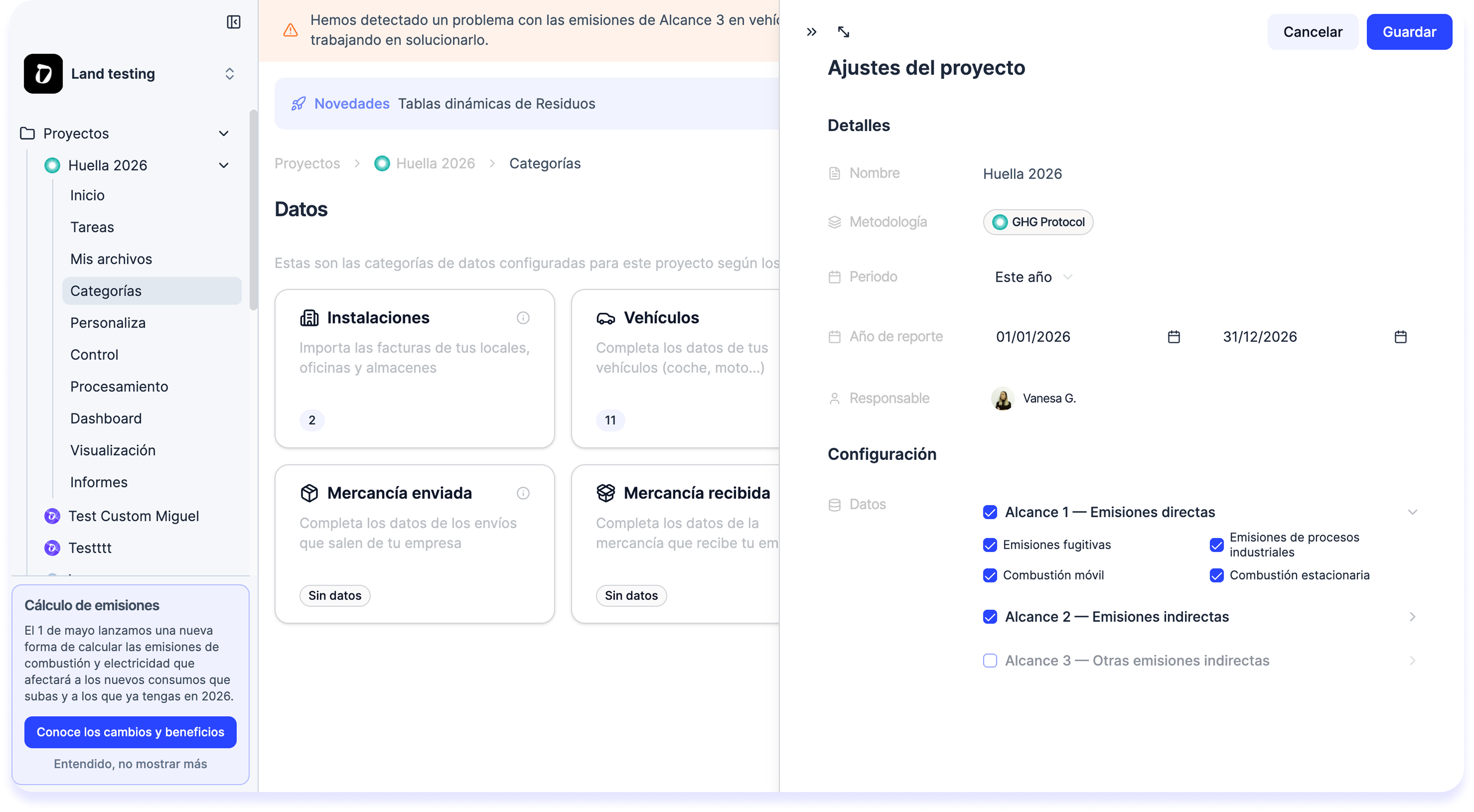
Until now, you had to go in and out of the project to see the data stored in Categories and work with your information in the project. Now you can do everything from inside the project in a simpler way, since the data categories are filtered according to what you need to report.
What has changed?
The GHG project adapts to the scope you are going to report — both when creating it and when you need to change it.
- When creating a project: it is created with all GHG categories and from Project Settings you leave only the applicable ones checked (Scope 1&2, Scope 1,2 & 3 with Cat 1+3, all 15…).
- In a project already in progress: from Project Settings you can check and uncheck categories at any time. The entire project reconfigures — data to upload, processing, control and downloads. Inside the project you only see what you need to upload, control and process. No noise.
How do I use it?
- New project: [+ New project] → GHG Protocol → Project Settings → check the GHG categories that apply.
- Existing project: inside your project → Project Settings → check/uncheck GHG categories → save. For existing customers
If you already had a GHG project running, you’ll see it this way already, without lifting a finger. If you had GHG enabled but no project, we’ve automatically created one for you so you can go straight into the new Dcycle.
Questions? Your Customer Success team is here to help.